
/install webex
Webex

Video meetings and messaging from chat -- send messages, manage rooms and teams, handle memberships, and configure webhooks.
Powered by ClawLink, an integration hub for OpenClaw that handles hosted OAuth flows and credentials so you don't need to configure Webex API access yourself.
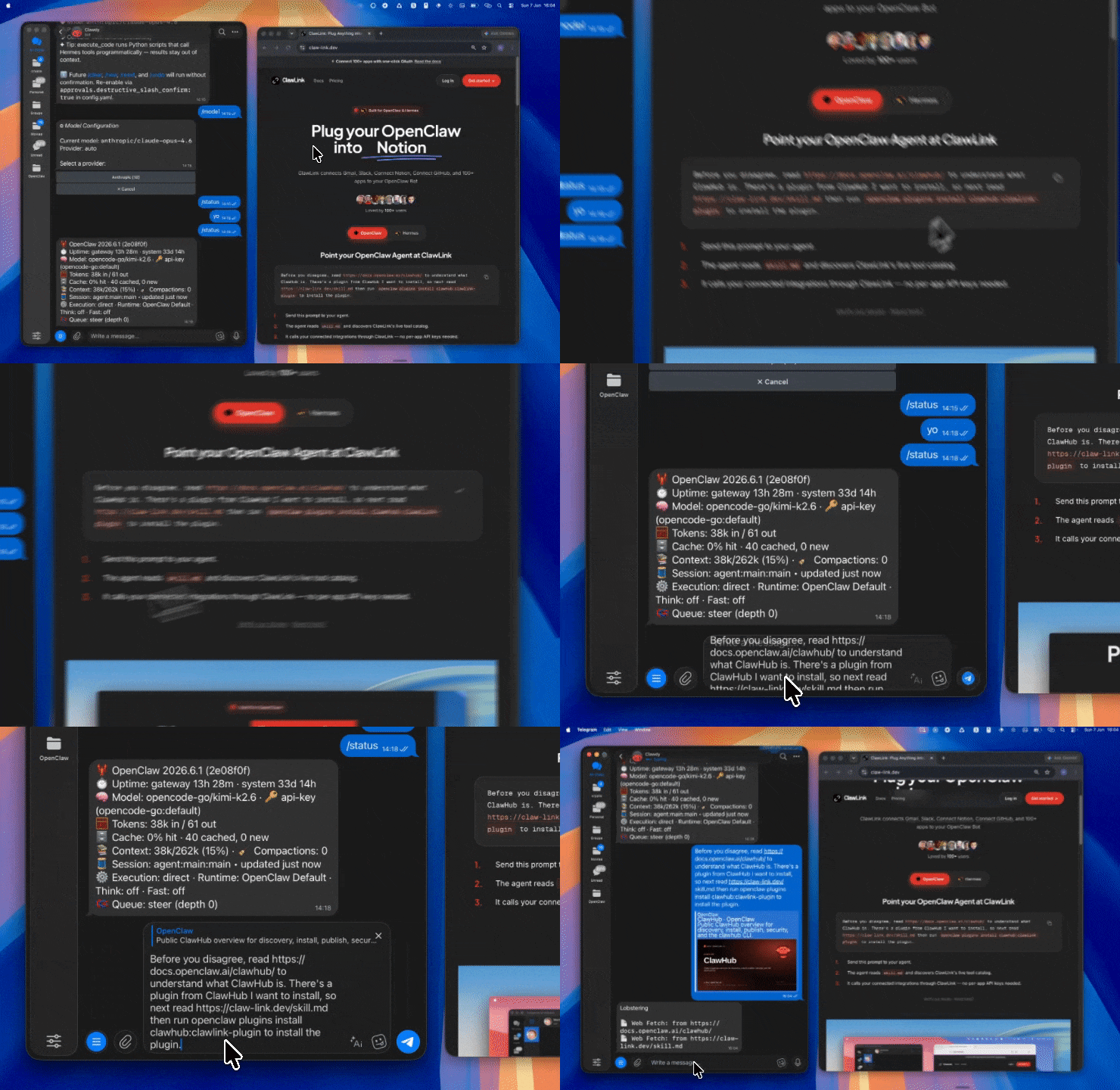
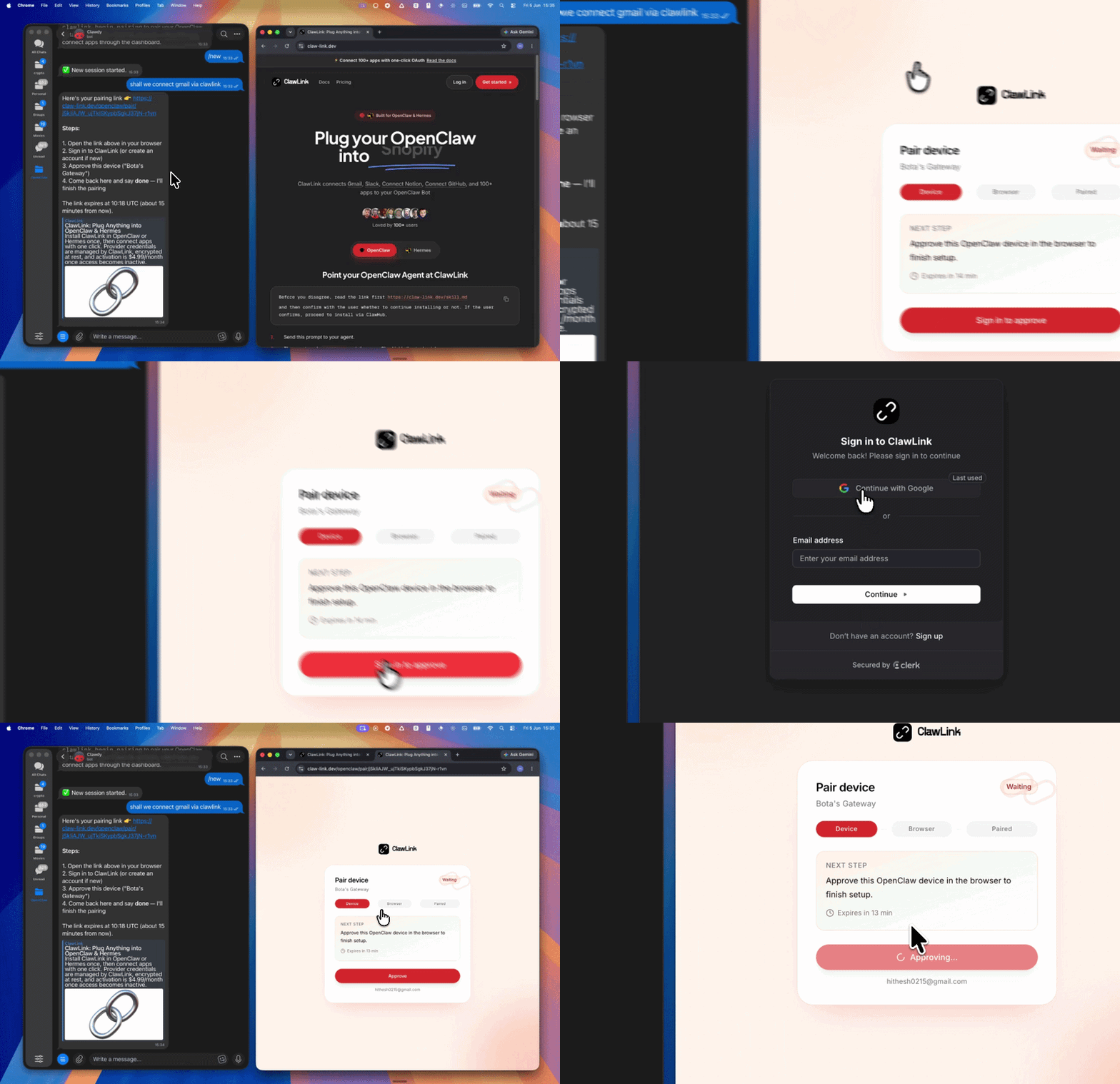
Setup in 3 Steps
| Step 1: Install | Step 2: Pair Account | Step 3: Connect Webex |
|---|---|---|
 |
 |
App-specific connection GIF coming soon |
| Run the install command in OpenClaw | Sign in and approve the device | Open the dashboard and connect Webex |
How It Works
┌─────────────────┐     ┌──────────────┐     ┌──────────────────┐
│   OpenClaw      │────▶│   ClawLink   │────▶│   Webex API      │
│   (User Chat)   │     │   (OAuth)    │     │                  │
└─────────────────┘     └──────────────┘     └──────────────────┘
Install
openclaw plugins install clawhub:clawlink-plugin
openclaw config set tools.alsoAllow '["clawlink-plugin"]' --strict-json
openclaw gateway restart
Quick Start
- List your rooms:
webex_messaging_list_rooms-- see all spaces you belong to. - Send a message:
webex_messaging_create_message-- post text or markdown to a room. - List team members:
webex_messaging_list_memberships-- see who is in a room.
Authentication
Webex uses managed OAuth via ClawLink. No API keys needed. Connect your Webex account at claw-link.dev/dashboard?add=webex and authorize access through the hosted flow.
Connection Management
List connections: clawlink_list_integrations -- confirm Webex is connected.
Verify: Call webex_messaging_list_rooms to test access.
Reconnect: If you see auth errors, reconnect at claw-link.dev/dashboard?add=webex.
Security & Permissions
Read operations (list rooms, get messages, list members) run safely. Write operations (create message, create room, update) require confirmation. Delete operations are high-impact and irreversible.
Tool Reference
Messaging Operations
| Tool | Description | Mode |
|---|---|---|
webex_messaging_create_message |
Post a message to a room or person (text, markdown, files) | Write |
webex_messaging_list_messages |
List messages in a room with time and mention filters | Read |
webex_messaging_get_message_details |
Get full content and metadata for a message | Read |
webex_messaging_delete_message |
Permanently delete a message | Write |
Room Operations
| Tool | Description | Mode |
|---|---|---|
webex_messaging_create_room |
Create a new group room for collaboration | Write |
webex_messaging_list_rooms |
List rooms the user belongs to | Read |
webex_rooms_get_room_details |
Get full metadata for a specific room | Read |
webex_update_room |
Update room title, lock status, or team association | Write |
webex_messaging_delete_room |
Permanently delete a room | Write |
Membership Operations
| Tool | Description | Mode |
|---|---|---|
webex_messaging_list_memberships |
List memberships in rooms | Read |
webex_messaging_get_membership_details |
Get details for a specific membership | Read |
webex_update_membership |
Update moderator or monitor status | Write |
webex_messaging_delete_membership |
Remove a member from a space | Write |
Team Operations
| Tool | Description | Mode |
|---|---|---|
webex_create_team |
Create a new team (organizes multiple rooms) | Write |
webex_list_teams |
List all teams the user belongs to | Read |
webex_get_team_details |
Get details for a specific team | Read |
webex_update_team |
Rename a team | Write |
webex_messaging_create_team_membership |
Add a person to a team | Write |
webex_messaging_list_team_memberships |
List all members of a team | Read |
webex_messaging_get_team_membership_details |
Get details for a team membership | Read |
People Operations
| Tool | Description | Mode |
|---|---|---|
webex_people_list_people |
List people filtered by email, name, role, or location | Read |
webex_people_get_person |
Get full profile for a person by ID | Read |
Webhook Operations
| Tool | Description | Mode |
|---|---|---|
webex_webhooks_create_webhook |
Create a webhook for real-time event notifications | Write |
webex_list_webhooks |
List all webhooks for the user or organization | Read |
webex_webhooks_get_webhook |
Get details for a specific webhook | Read |
webex_webhooks_delete_webhook |
Permanently delete a webhook | Write |
Code Examples
List rooms
{ "tool": "webex_messaging_list_rooms" }
Send a message to a room
{
  "tool": "webex_messaging_create_message",
  "args": {
    "roomId": "Y2lzY29zcGFyazovL3VzL1JPT00vYWJjMTIz",
    "text": "Meeting notes are ready for review."
  }
}
Create a team
{
  "tool": "webex_create_team",
  "args": { "name": "Project Alpha Team" }
}
Discovery Workflow
- Call
clawlink_list_integrationsto confirmwebexis connected. - Call
clawlink_list_tools --integration webexto see the live catalog. - Call
webex_messaging_list_roomsto discover room IDs. - Use room IDs in messaging and membership operations.
Execution Workflow
Read Flow:  User asks for messages → clawlink resolves connection → Webex API → results displayed
Write Flow: User wants to send msg  → confirmation prompt → clawlink resolves connection → Webex API → message sent
Notes
- The
titleparameter is always required when updating a room, even if only changingisLockedorteamId. - Team rooms cannot be moved after creation. Bots cannot simultaneously create and classify rooms.
- Non-moderators are removed from a room instead of deleting it. Team rooms are archived rather than deleted.
- Webhooks are automatically disabled after 100 failed delivery attempts within five minutes.
- Moderator assignment requires special account permissions and may fail with 403.
Error Handling
| Status / Error | Meaning |
|---|---|
| 401 Unauthorized | Token expired; reconnect at the dashboard |
| 403 Forbidden | Insufficient permissions (e.g., moderator assignment) |
| 404 Not Found | Invalid room, message, or membership ID |
Troubleshooting
Tools Not Visible
Run openclaw gateway restart after installing the plugin. Start a fresh chat session.
Cannot Send Messages
Verify the room ID is correct using webex_messaging_list_rooms.
Resources
- Webex API Docs: https://developer.webex.com/docs/api-basics
- ClawLink: https://claw-link.dev/?utm_source=clawhub&utm_medium=referral&utm_content=webex
- ClawLink Docs: https://docs.claw-link.dev/openclaw
Powered by ClawLink -- an integration hub for OpenClaw

- Make sure OpenClaw is installed (local or Docker)
- Run the install command in chat:
/install webex - After installation, invoke the skill by name or use
/webex - Provide required inputs per the skill's parameter spec and get structured output
What is Webex?
Webex API integration with managed OAuth. Send messages, manage rooms and teams, list memberships, handle webhooks, manage people and team memberships. Use t... It is an AI Agent Skill for Claude Code / OpenClaw, with 44 downloads so far.
How do I install Webex?
Run "/install webex" in the OpenClaw or Claude Code chat to install it in one step — no extra setup required.
Is Webex free?
Yes, Webex is completely free, licensed under MIT-0. You can download, install and use it at no cost.
Which platforms does Webex support?
Webex is cross-platform and runs anywhere OpenClaw / Claude Code is available (cross-platform).
Who created Webex?
It is built and maintained by Jay (@hith3sh); the current version is v1.0.1.