
/install spotify-audio
Spotify
Search and manage Spotify content — playlists, tracks, albums, artists, playback, and library — from chat using the Spotify Web API.
This skill uses ClawLink for hosted connection flows and credentials so you do not need to configure Spotify API access yourself.
Setup in 3 Steps
| Step 1: Install | Step 2: Pair Account | Step 3: Connect Spotify |
|---|---|---|
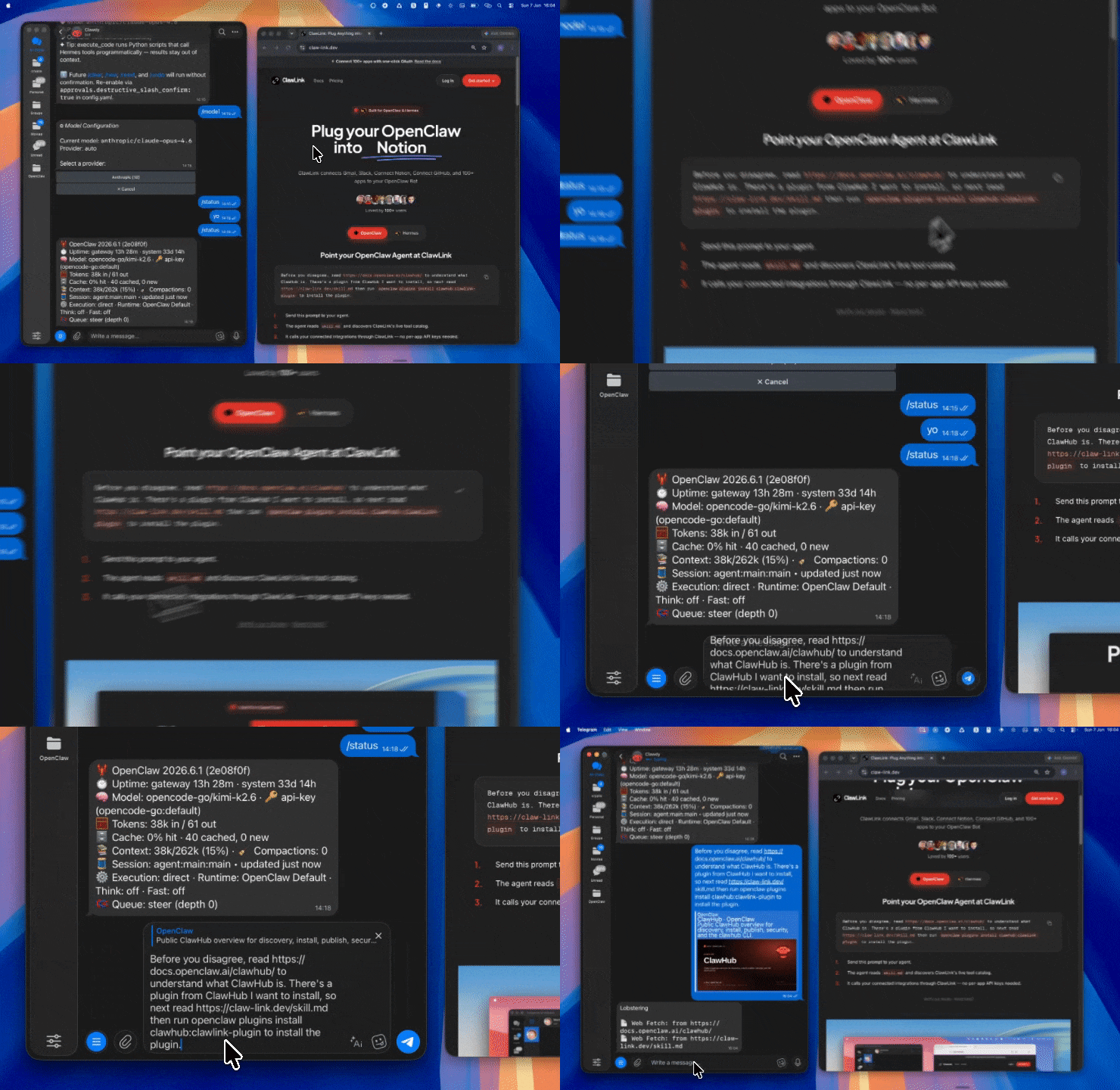 |
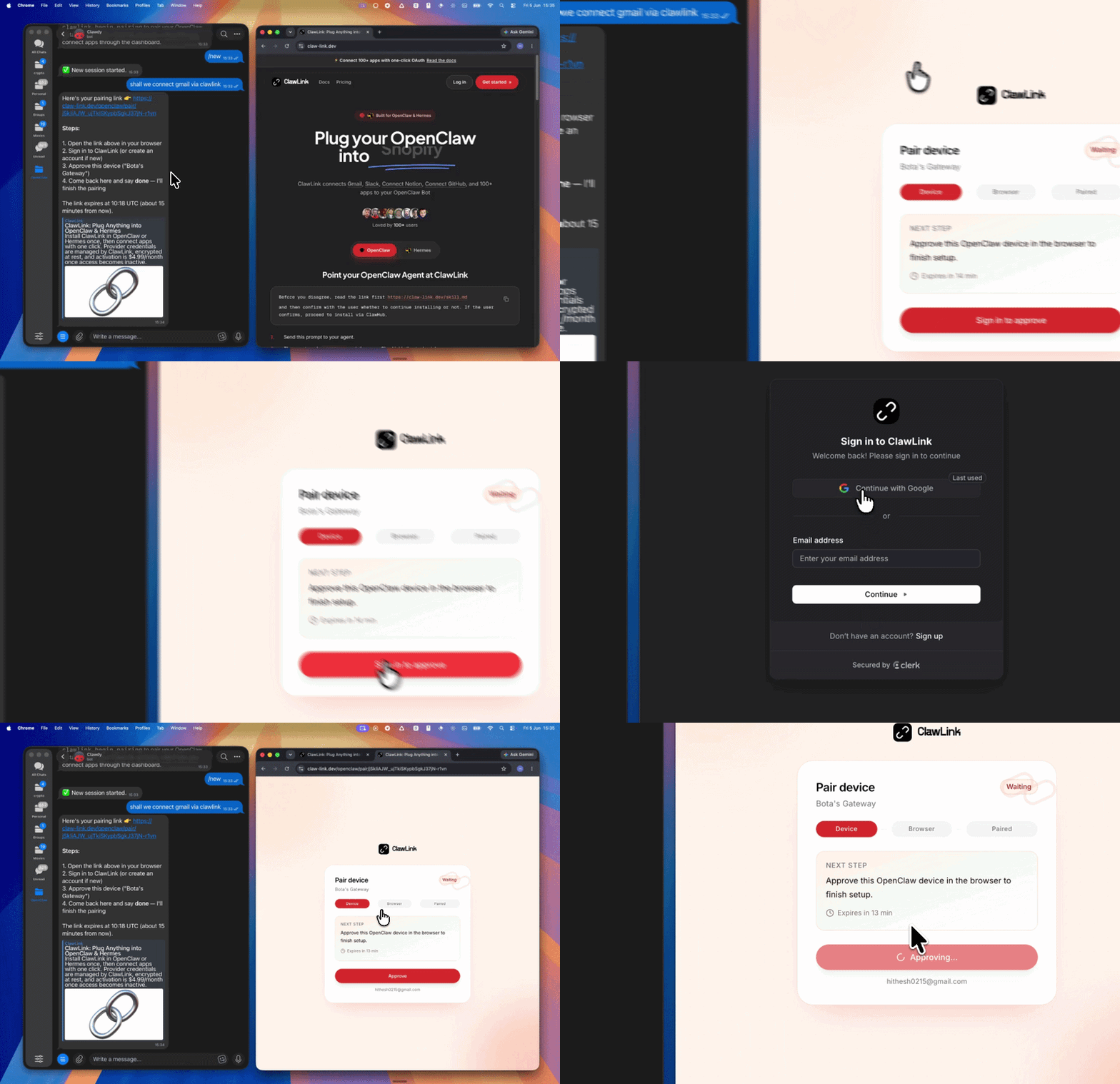 |
App-specific connection GIF coming soon |
| Run the install command in OpenClaw | Sign in and approve the device | Open the dashboard and connect Spotify |
How It Works
┌─────────────────┐     ┌──────────────┐     ┌──────────────────┐
│   OpenClaw      │────▶│   ClawLink   │────▶│  Spotify Web     │
│   (User Chat)   │     │   (OAuth)    │     │      API         │
└─────────────────┘     └──────────────┘     └──────────────────┘
         │                       │                       │
         │  1. Install Plugin    │                       │
         │  2. Pair Device       │                       │
         │  3. Connect Spotify   │                       │
         │                       │  4. Secure Token      │
         │                       │  5. Proxy Requests   │
         │                       │                       │
         ▼                       ▼                       ▼
   ┌──────────┐           ┌──────────┐           ┌──────────┐
   │  SKILL   │           │ Dashboard│           │  Spotify │
   │  File    │           │ Auth     │           │  Account │
   └──────────┘           └──────────┘           └──────────┘
Install
Install the verified ClawLink plugin from ClawHub. After the user confirms, complete the full setup so ClawLink tools are visible in the next OpenClaw chat.
openclaw plugins install clawhub:clawlink-plugin
openclaw config set tools.alsoAllow '["clawlink-plugin"]' --strict-json
openclaw gateway restart
Then tell the user: "OpenClaw has been restarted. Send /new as a standalone message to start a fresh chat, then ask for Spotify again."
Quick Start
# Search for tracks
clawlink_call_tool --tool "spotify_search" --params '{"q": "never gonna give you up", "type": "track"}'

# Get current user's playlists
clawlink_call_tool --tool "spotify_get_current_user_playlists" --params '{}'

# Get track details
clawlink_call_tool --tool "spotify_get_track" --params '{"track_id": "TRACK_ID"}'
Authentication
All Spotify tool calls are authenticated automatically by ClawLink using the user's connected Spotify account OAuth token.
No API token is required in chat. ClawLink stores the OAuth token securely and injects it into every Spotify Web API request on the user's behalf.
Getting Connected
- Install the ClawLink plugin (see Install above).
- Pair the plugin with
clawlink_begin_pairingif it is not configured yet. - Open https://claw-link.dev/dashboard?add=spotify and connect Spotify.
- Call
clawlink_list_integrationsto verify the connection is active.
Connection Management
List Connections
clawlink_list_integrations
Response: Returns all connected integrations. Look for spotify in the list.
Verify Connection
clawlink_list_tools --integration spotify
Response: Returns the live tool catalog for Spotify.
Reconnect
If Spotify tools are missing or the connection shows an error:
- Direct the user to https://claw-link.dev/dashboard?add=spotify
- After they confirm, call
clawlink_list_integrationsto verify - Then call
clawlink_list_tools --integration spotify
Security & Permissions
- Access is scoped to the Spotify account connected during OAuth setup and the scopes granted.
- Write operations (create playlist, save track, remove from playlist, playback control) require explicit user confirmation.
- Playback control tools may require an active Spotify Premium subscription depending on the operation.
- Confirm destructive or bulk changes before executing.
Tool Reference
Search
| Tool | Description | Mode |
|---|---|---|
spotify_search |
Search for tracks, albums, artists, playlists, or shows | Read |
spotify_search_tracks |
Search specifically for tracks | Read |
spotify_search_artists |
Search specifically for artists | Read |
spotify_search_albums |
Search specifically for albums | Read |
spotify_search_playlists |
Search specifically for playlists | Read |
Tracks
| Tool | Description | Mode |
|---|---|---|
spotify_get_track |
Get details for a single track | Read |
spotify_get_tracks |
Get details for multiple tracks at once | Read |
spotify_get_audio_features |
Get audio features (tempo, key, danceability, etc.) | Read |
spotify_get_audio_analysis |
Get detailed audio analysis for a track | Read |
spotify_save_track |
Save a track to the user's library | Write |
spotify_remove_saved_track |
Remove a track from the user's library | Write |
spotify_check_saved_tracks |
Check which tracks are saved in the library | Read |
Albums
| Tool | Description | Mode |
|---|---|---|
spotify_get_album |
Get album details with tracks | Read |
spotify_get_album_tracks |
Get tracks on an album | Read |
spotify_save_album |
Save an album to the user's library | Write |
spotify_remove_saved_album |
Remove an album from the user's library | Write |
spotify_check_saved_albums |
Check which albums are saved | Read |
Artists
| Tool | Description | Mode |
|---|---|---|
spotify_get_artist |
Get an artist's profile and follower count | Read |
spotify_get_artist_albums |
Get albums by an artist | Read |
spotify_get_artist_top_tracks |
Get an artist's top tracks | Read |
spotify_get_related_artists |
Get artists related to this one | Read |
Playlists
| Tool | Description | Mode |
|---|---|---|
spotify_get_current_user_playlists |
Get the current user's playlists | Read |
spotify_get_playlist |
Get a playlist's details and tracks | Read |
spotify_create_playlist |
Create a new playlist for the user | Write |
spotify_update_playlist |
Update a playlist's name, description, or visibility | Write |
spotify_delete_playlist |
Delete a playlist | Write |
spotify_add_tracks_to_playlist |
Add tracks to a playlist | Write |
spotify_remove_tracks_from_playlist |
Remove tracks from a playlist | Write |
spotify_reorder_playlist_tracks |
Reorder tracks within a playlist | Write |
spotify_get_playlist_cover_image |
Get the playlist's cover image | Read |
spotify_upload_playlist_cover_image |
Upload a custom cover image | Write |
User Profile
| Tool | Description | Mode |
|---|---|---|
spotify_get_current_user |
Get the current user's profile | Read |
spotify_get_user_profile |
Get another user's public profile | Read |
spotify_follow_user |
Follow a user | Write |
spotify_unfollow_user |
Unfollow a user | Write |
spotify_follow_playlist |
Follow a playlist | Write |
spotify_unfollow_playlist |
Unfollow a playlist | Write |
Playback
| Tool | Description | Mode |
|---|---|---|
spotify_get_playback_state |
Get the user's current playback state | Read |
spotify_start_playback |
Start or resume playback | Write |
spotify_pause_playback |
Pause playback | Write |
spotify_skip_to_next |
Skip to the next track | Write |
spotify_skip_to_previous |
Skip to the previous track | Write |
spotify_seek_to_position |
Seek to a position in the current track | Write |
spotify_set_repeat_mode |
Set the repeat mode (off, track, context) | Write |
spotify_set_volume |
Set the playback volume | Write |
spotify_shuffle |
Toggle shuffle on or off | Write |
spotify_transfer_playback |
Transfer playback to another device | Write |
Recently Played
| Tool | Description | Mode |
|---|---|---|
spotify_get_recently_played |
Get the user's recently played tracks | Read |
spotify_get_recently_played_episodes |
Get recently played episodes (podcasts) | Read |
Browse & Recommendations
| Tool | Description | Mode |
|---|---|---|
spotify_get_new_releases |
Get new album releases | Read |
spotify_get_featured_playlists |
Get featured Spotify playlists | Read |
spotify_get_recommendations |
Get track recommendations based on seeds | Read |
spotify_get_available_genre_seeds |
Get available genre seeds for recommendations | Read |
spotify_get_categories |
Get all Spotify categories | Read |
spotify_get_category_playlists |
Get playlists for a specific category | Read |
Code Examples
Search for a track
clawlink_call_tool --tool "spotify_search" \
  --params '{
    "q": "bohemian rhapsody queen",
    "type": "track",
    "limit": 5
  }'
Get a playlist's tracks
clawlink_call_tool --tool "spotify_get_playlist" \
  --params '{
    "playlist_id": "PLAYLIST_ID"
  }'
Create a new playlist
clawlink_call_tool --tool "spotify_create_playlist" \
  --params '{
    "name": "My OpenClaw Playlist",
    "description": "Created via OpenClaw AI assistant",
    "public": false
  }'
Add tracks to a playlist
clawlink_call_tool --tool "spotify_add_tracks_to_playlist" \
  --params '{
    "playlist_id": "PLAYLIST_ID",
    "uris": ["spotify:track:TRACK_ID_1", "spotify:track:TRACK_ID_2"]
  }'
Get audio features for a track
clawlink_call_tool --tool "spotify_get_audio_features" \
  --params '{
    "track_id": "TRACK_ID"
  }'
Get new releases
clawlink_call_tool --tool "spotify_get_new_releases" \
  --params '{
    "limit": 10,
    "country": "US"
  }'
Discovery Workflow
- Call
clawlink_list_integrationsto confirm Spotify is connected. - Call
clawlink_list_tools --integration spotifyto see the live catalog. - Treat the returned list as the source of truth. Do not guess or assume what tools exist.
- If the user describes a capability but the exact tool is unclear, call
clawlink_search_toolswith a short query and integrationspotify. - If no Spotify tools appear, direct the user to https://claw-link.dev/dashboard?add=spotify.
Execution Workflow
┌─────────────────────────────────────────────────────────────┐
│  READ OPERATIONS (Safe)                                     │
│  search → get → list → browse                              │
│                                                             │
│  Example: Search tracks → Get track details → Show info    │
└─────────────────────────────────────────────────────────────┘
                              │
                              ▼
┌─────────────────────────────────────────────────────────────┐
│  WRITE OPERATIONS (Require Confirmation)                    │
│  describe → preview → confirm → call                        │
│                                                             │
│  Example: Preview playlist creation → User approves → Create│
└─────────────────────────────────────────────────────────────┘
- For unfamiliar tools, ambiguous requests, or any write action, call
clawlink_describe_toolfirst. - Use the returned guidance, schema,
whenToUse,askBefore,safeDefaults,examples, andfollowupsto shape the call. - Prefer read, search, and get operations before writes when that reduces ambiguity.
- For writes or anything marked as requiring confirmation, call
clawlink_preview_toolfirst. - Execute with
clawlink_call_tool. Pass confirmation only after the preview matches the user's intent. - If the tool call fails, report the real error. Do not invent results or restate the failure as a missing capability unless the live catalog supports that conclusion.
Notes
- Playback control tools (play, pause, skip, volume) require Spotify Premium on the account that created the token.
- Track and playlist IDs must be the Spotify URI format (e.g.,
spotify:track:3AhXNa5py1) or just the alphanumeric ID. - Search results are limited by Spotify's API — use
limitparameter to control result count. - The user's country code affects available content (some tracks may be region-locked).
- Playlist modification operations may be rate-limited by Spotify.
- Saved tracks and albums are per-user library — they require an active user context.
Error Handling
| Status / Error | Meaning |
|---|---|
| Tool not found | The tool name does not exist in the current catalog. Verify with clawlink_list_tools --integration spotify. |
| Missing connection | Spotify is not connected. Direct the user to https://claw-link.dev/dashboard?add=spotify. |
NO_ACTIVE_DEVICE |
No active Spotify device found to control playback. Open Spotify on a device first. |
PREMIUM_REQUIRED |
Playback control requires Spotify Premium. |
INVALID_TRACK_ID |
The track ID does not match any track in Spotify's catalog. |
INVALID_PLAYLIST_ID |
The playlist ID does not exist or is not accessible. |
NOT_FOUND |
The requested resource (track, album, artist) was not found. |
RATE_LIMITED |
Too many requests — wait and retry. |
| Write rejected | User did not confirm a write action. Always confirm before executing writes. |
Troubleshooting: Tools Not Visible
- Check that the ClawLink plugin is installed:
openclaw plugins list - If the plugin is installed but tools are missing, tell the user to send
/newas a standalone message to reload the catalog. - If a fresh chat does not help, run:
openclaw config set tools.alsoAllow '["clawlink-plugin"]' --strict-json openclaw gateway restart - After restart, tell the user to send
/newagain and retry.
Troubleshooting: Playback Control Fails
- Confirm the Spotify account has Premium — free accounts cannot control playback programmatically.
- Ensure there is an active device with Spotify open — playback requires an active session.
- Check that the correct device ID is being used if
spotify_transfer_playbackis needed first.
Resources
- Spotify Web API Documentation
- Spotify Developer Console
- Spotify OAuth Guide
- ClawLink: https://claw-link.dev
- ClawLink Docs: https://docs.claw-link.dev/openclaw
- ClawLink Verification: https://claw-link.dev/verify
Powered by ClawLink — an integration hub for OpenClaw

- 确保已安装 OpenClaw(本地或 Docker 部署)
- 在对话框中输入安装命令:
/install spotify-audio - 安装完成后,直接呼叫该 Skill 的名称或使用
/spotify-audio触发 - 根据 Skill 的参数说明提供必要输入,即可获得结构化输出
Spotify 是什么?
Search and manage Spotify playlists, tracks, albums, artists, and playback state via the Spotify Web API. Use this skill when users want to search for music,... 它是一个面向 Claude Code / OpenClaw 的 AI Agent Skill 插件,目前累计下载 40 次。
如何安装 Spotify?
在 OpenClaw 或 Claude Code 对话框中运行命令「/install spotify-audio」即可一键安装,无需额外配置。
Spotify 是免费的吗?
是的,Spotify 完全免费,采用 MIT-0 许可证,可自由下载、安装和使用。
Spotify 支持哪些平台?
Spotify 跨平台运行,可在任意部署了 OpenClaw / Claude Code 的环境中使用(cross-platform)。
谁开发了 Spotify?
由 Jay(@hith3sh)开发并维护,当前版本 v0.2.0。