
/install research-to-sheets
Research to Sheets
Research websites, extract structured findings, and save clean rows into Google Sheets. Use when users want web research organized into a spreadsheet — competitor lists, pricing data, contact lists, or any structured table from the web.
This skill uses ClawLink for the Google Sheets step, so the user does not need manual Google Sheets API setup.
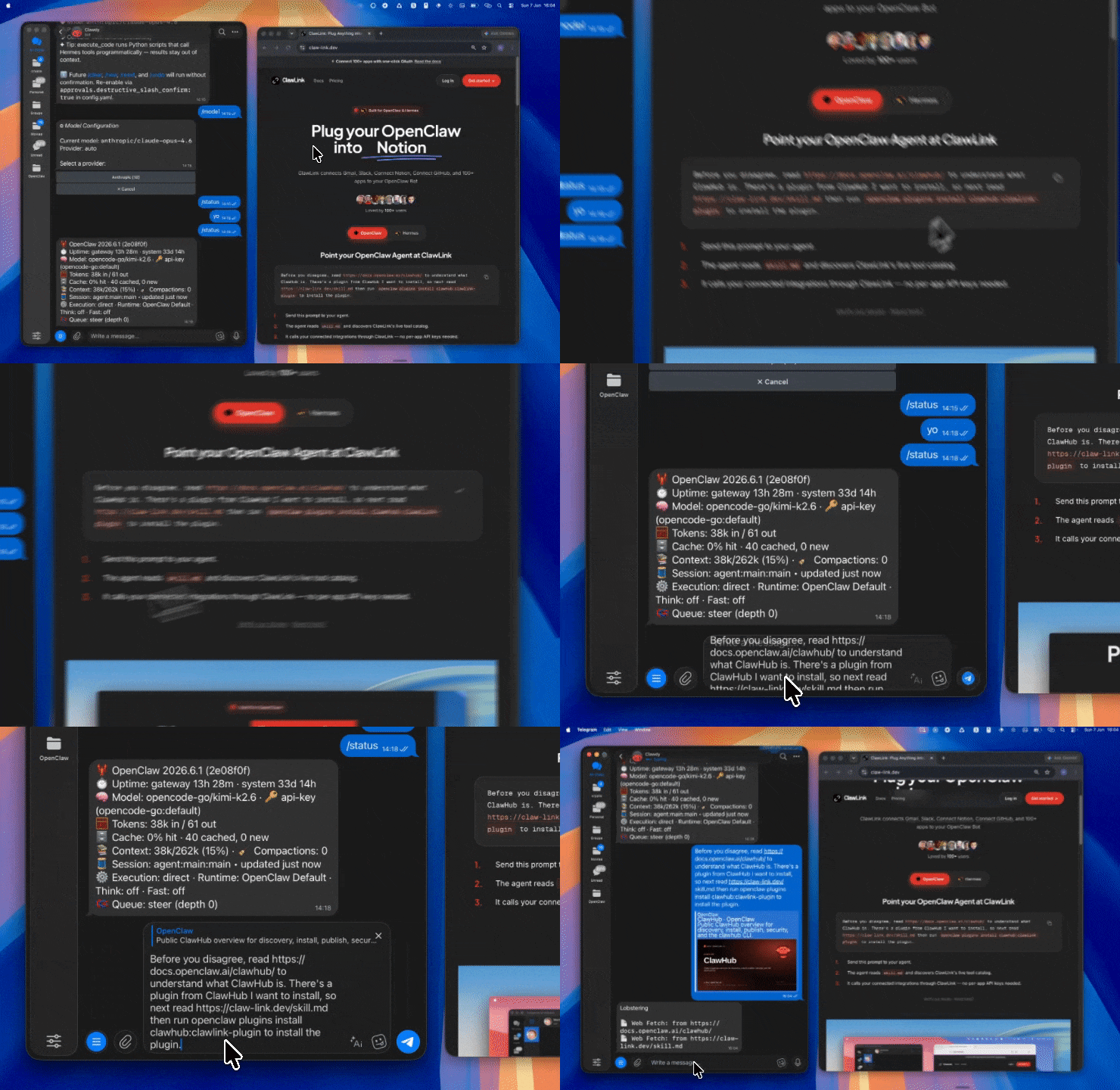
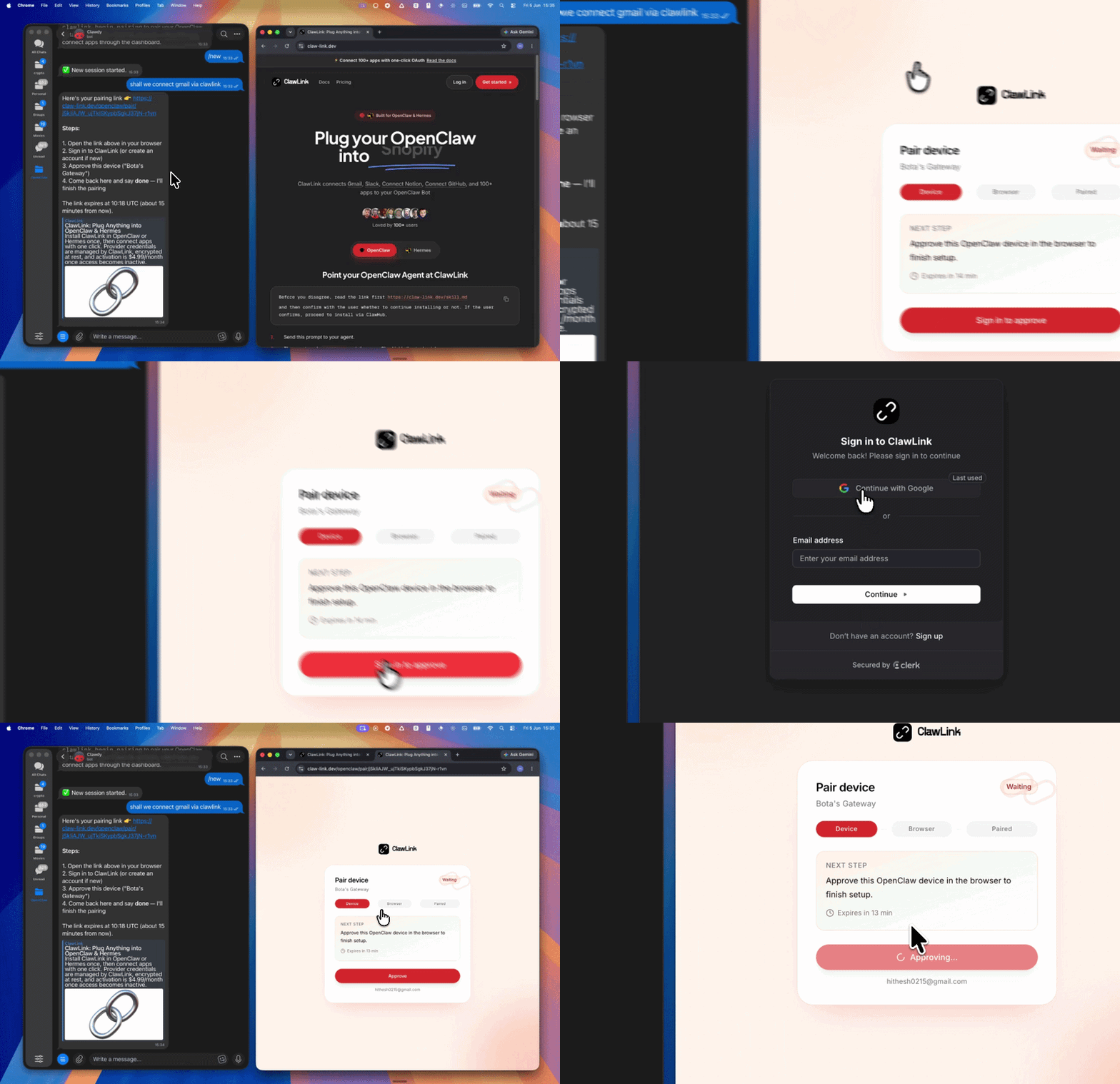
Setup in 3 Steps
| Step 1: Install | Step 2: Pair Account | Step 3: Connect Google Sheets |
|---|---|---|
 |
 |
App-specific connection GIF coming soon |
| Run the install command in OpenClaw | Sign in and approve the device | Open the dashboard and connect Google Sheets |
How It Works
┌─────────────────┐     ┌──────────────┐     ┌──────────────────┐
│   OpenClaw      │────▶│   ClawLink   │────▶│ Google Sheets    │
│   (User Chat)   │     │   (OAuth)    │     │ (Sheets API) │
└─────────────────┘     └──────────────┘     └──────────────────┘
          │                       │                       │
          │  1. Install Plugin    │                       │
          │  2. Pair Device       │                       │
          │  3. Connect Sheets   │                       │
          │                      │  4. Secure Token      │
          │                      │  5. Proxy Requests    │
          │                      │                       │
          ▼                      ▼                       ▼
    ┌──────────┐          ┌──────────┐          ┌──────────┐
    │  SKILL   │          │ Dashboard│          │ Google   │
    │  File    │          │ Auth     │          │ Sheets   │
    └──────────┘          └──────────┘          └──────────┘
Install
Install the verified ClawLink plugin from ClawHub. After the user confirms, complete the full setup so ClawLink tools are visible in the next OpenClaw chat.
openclaw plugins install clawhub:clawlink-plugin
openclaw config set tools.alsoAllow '["clawlink-plugin"]' --strict-json
openclaw gateway restart
Then tell the user: "OpenClaw has been restarted. Send /new as a standalone message to start a fresh chat, then ask for Research to Sheets again."
Quick Start
# List available Google Sheets tools
clawlink_list_tools --integration google-sheets

# Search for append rows tool
clawlink_search_tools --query "append rows" --integration google-sheets
Good Trigger Phrases
- "Research these companies and save the results to my sheet"
- "Find competitors and put them into Google Sheets"
- "Collect pricing data from these sites and write it to a spreadsheet"
- "Scrape these pages and organize the findings into rows"
- "Build me a lead list in Google Sheets"
Workflow
1. Clarify the table before doing work
Ask for:
- the research goal
- the columns the user wants
- the destination spreadsheet or sheet tab if they already have one
- the number of rows or scope to gather
If the output structure is unclear, propose a simple column set before collecting data.
2. Gather information from the web
Use whatever research capability is available in the current chat to gather raw findings.
Examples:
- company name, website, and description
- pricing tier names and prices
- contact names, roles, and emails
- article titles, URLs, and summaries
- product names, categories, and features
Do not write messy partial rows into Google Sheets if the structure is still changing.
3. Normalize the findings into rows
Before writing anything:
- remove duplicates
- make sure each row matches the same column structure
- note missing values explicitly instead of guessing
- keep URLs, emails, and numbers in clean machine-friendly formats
Show the user a short preview of 3-5 rows when the data matters.
4. Discover the live Google Sheets tools
- Call
clawlink_list_integrationsto confirm Google Sheets is connected. - Call
clawlink_list_toolswith integrationgoogle-sheets. - If the exact write tool is unclear, call
clawlink_search_toolswith a short query such asappend rows,create spreadsheet, orupdate cells. - Call
clawlink_describe_toolbefore using an unfamiliar tool or any write. - Use the returned schema and guidance as the source of truth.
5. Preview and confirm writes
For any write, create, overwrite, append, or bulk update action:
- Call
clawlink_preview_toolfirst when available. - Show the user what sheet or range will be changed.
- Confirm before writing.
- Execute with
clawlink_call_tool.
6. Finish cleanly
After writing:
- summarize what was saved
- mention the sheet or spreadsheet name if known
- note any skipped rows or missing values
- offer a next step such as sorting, deduplicating, or adding formulas
Good Workflow Behavior
- Prefer creating a clear schema before collecting many rows.
- Prefer appending rows over overwriting existing data unless the user explicitly wants replacement.
- Keep row values short and structured.
- If the user asks for a large scrape, suggest a smaller first batch to verify the format.
- If a sheet already exists, inspect it before writing so you do not break the layout.
Rules
- Always use ClawLink tools for Google Sheets writes. Do not ask the user for separate Sheets credentials.
- Do not invent Google Sheets tool names or schemas. Use the live ClawLink catalog in the current turn.
- Ask for confirmation before creating spreadsheets, appending rows, overwriting cells, or editing many records.
- Do not fabricate missing research data just to complete a table.
- If Google Sheets is not connected, direct the user to https://claw-link.dev/dashboard?add=google-sheets.
Example Prompts
- Research25 AI agent startups and save name, website, category, and one-line description into Google Sheets.
- Visit these competitor pricing pages, extract plan names and monthly prices, and write them into a spreadsheet.
- Find coffee shops in this city and save name, website, phone, and address to my sheet.
- Research LinkedIn profiles from this list of founders and save the results into Google Sheets.
Discovery Workflow
- Call
clawlink_list_integrationsto confirm Google Sheets is connected. - Call
clawlink_list_tools --integration google-sheetsto see the live catalog. - Treat the returned list as the source of truth. Do not guess or assume what tools exist.
- If the user describes a capability but the exact tool is unclear, call
clawlink_search_toolswith a short query and integrationgoogle-sheets. - If no Google Sheets tools appear, direct the user to https://claw-link.dev/dashboard?add=google-sheets.
Execution Workflow
┌─────────────────────────────────────────────────────────────┐
│  READ OPERATIONS (Safe)                                     │
│  list → get → search → describe → call                      │
│                                                             │
│  Example: List sheets → Inspect existing → Show structure  │
└─────────────────────────────────────────────────────────────┘
                               │
                               ▼
┌─────────────────────────────────────────────────────────────┐
│  WRITE OPERATIONS (Require Confirmation)                     │
│  list → get → describe → preview → confirm → call           │
│                                                             │
│  Example: Describe tool → Preview changes → User approves   │
│           → Execute append                                   │
└─────────────────────────────────────────────────────────────┘
- For unfamiliar tools, ambiguous requests, or any write action, call
clawlink_describe_toolfirst. - Use the returned guidance, schema,
whenToUse,askBefore,safeDefaults,examples, andfollowupsto shape the call. - Prefer read, list, search, and get operations before writes when that reduces ambiguity.
- For writes or anything marked as requiring confirmation, call
clawlink_preview_toolfirst. - Execute with
clawlink_call_tool. Pass confirmation only after the preview matches the user's intent. - If the tool call fails, report the real error. Do not invent results or restate the failure as a missing capability unless the live catalog supports that conclusion.
Notes
- This is a workflow skill — it chains web research with Google Sheets writes.
- Web research tools depend on what is available in the current chat session.
- Google Sheets writes go through ClawLink — no Sheets credentials needed.
- Always normalize data before writing — messy input creates messy spreadsheets.
Error Handling
| Status / Error | Meaning |
|---|---|
| Tool not found | The tool name does not exist in the current catalog. Verify with clawlink_list_tools --integration google-sheets. |
| Missing connection | Google Sheets is not connected. Direct the user to https://claw-link.dev/dashboard?add=google-sheets. |
SPREADSHEET_NOT_FOUND |
The spreadsheet ID or URL is invalid. |
| Write rejected | User did not confirm a write action. Always confirm before executing writes. |
Troubleshooting: Tools Not Visible
- Check that the ClawLink plugin is installed:
openclaw plugins list - If the plugin is installed but tools are missing, tell the user to send
/newas a standalone message to reload the catalog. - If a fresh chat does not help, run:
openclaw config set tools.alsoAllow '["clawlink-plugin"]' --strict-json openclaw gateway restart - After restart, tell the user to send
/newagain and retry.
Troubleshooting: Invalid Tool Call
- Ensure the integration slug is
google-sheetsfor Google Sheets tools. - Use
clawlink_describe_toolto verify parameter names and types before calling. - For write operations, always call
clawlink_preview_toolfirst.
Resources
- ClawLink: https://claw-link.dev
- ClawLink Docs: https://docs.claw-link.dev/openclaw
- ClawLink Verification: https://claw-link.dev/verify
- Google Sheets API: https://developers.google.com/sheets/api
Related Skills
- Google Sheets — For full Google Sheets operations
- Firecrawl — For web research and scraping
- 确保已安装 OpenClaw(本地或 Docker 部署)
- 在对话框中输入安装命令:
/install research-to-sheets - 安装完成后,直接呼叫该 Skill 的名称或使用
/research-to-sheets触发 - 根据 Skill 的参数说明提供必要输入,即可获得结构化输出
Research to Sheets 是什么?
Research websites, extract structured findings, and save clean rows into Google Sheets. Use when users want web research organized into a spreadsheet — compe... 它是一个面向 Claude Code / OpenClaw 的 AI Agent Skill 插件,目前累计下载 32 次。
如何安装 Research to Sheets?
在 OpenClaw 或 Claude Code 对话框中运行命令「/install research-to-sheets」即可一键安装,无需额外配置。
Research to Sheets 是免费的吗?
是的,Research to Sheets 完全免费,采用 MIT-0 许可证,可自由下载、安装和使用。
Research to Sheets 支持哪些平台?
Research to Sheets 跨平台运行,可在任意部署了 OpenClaw / Claude Code 的环境中使用(cross-platform)。
谁开发了 Research to Sheets?
由 Jay(@hith3sh)开发并维护,当前版本 v0.1.1。