
/install slackbot
Slackbot

Slack is a team communication platform with channels, direct messages, file sharing, and workflow automation. This integration uses managed OAuth through ClawLink to provide comprehensive Slack workspace automation -- from messaging and channel management to file handling, reactions, reminders, and canvases.
Setup in 3 Steps
| Step 1: Install | Step 2: Pair Account | Step 3: Connect Slack |
|---|---|---|
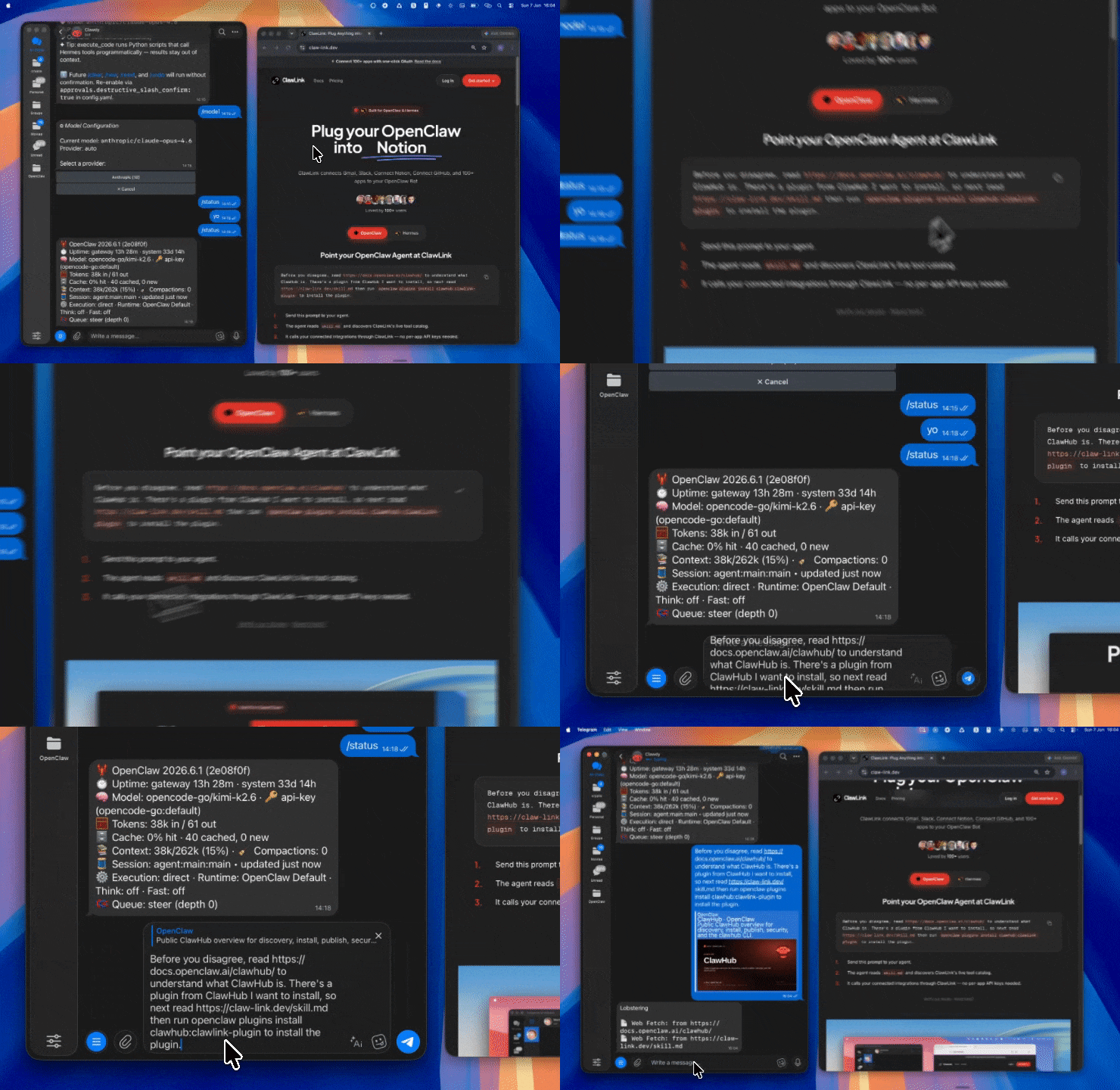 |
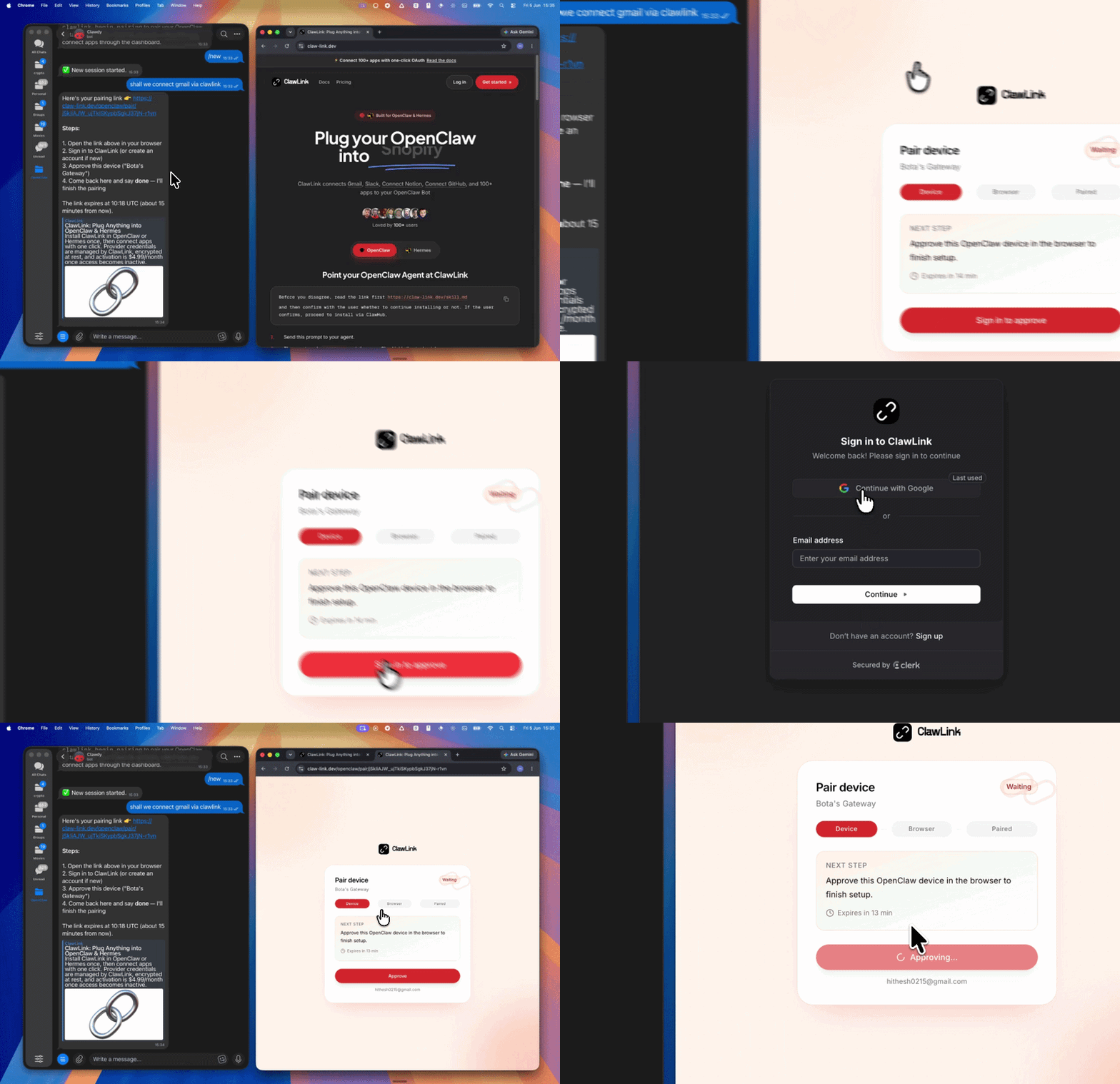 |
App-specific connection GIF coming soon |
| Run the install command in OpenClaw | Sign in and approve the device | Open the dashboard and connect Slack |
How It Works
┌─────────────────┐     ┌──────────────┐     ┌──────────────────┐
│   OpenClaw      │────▶│   ClawLink   │────▶│   Slack API      │
│   (User Chat)   │     │   (OAuth)    │     │                  │
└─────────────────┘     └──────────────┘     └──────────────────┘
Install
openclaw plugins install clawhub:clawlink-plugin
openclaw config set tools.alsoAllow '["clawlink-plugin"]' --strict-json
openclaw gateway restart
Quick Start
Send a message to a channel:
clawlink_execute_tool --integration slackbot --tool slackbot_send_message --args '{"channel": "C01234567", "markdown_text": "Deployment complete. All systems operational."}'
Search for messages in the workspace:
clawlink_execute_tool --integration slackbot --tool slackbot_search_messages --args '{"query": "quarterly report"}'
List all channels in the workspace:
clawlink_execute_tool --integration slackbot --tool slackbot_list_all_channels
Authentication
Slack uses OAuth 2.0 managed by ClawLink. No API keys are needed. Authorize your Slack workspace through the ClawLink dashboard. The connection is stored securely and refreshed automatically.
Connect at: https://claw-link.dev/dashboard?add=slackbot
Connection Management
List connections:
clawlink_list_integrations
Verify connection:
clawlink_execute_tool --integration slackbot --tool slackbot_fetch_team_info
Reconnect: If a connection expires, visit the dashboard URL above and reconnect Slack.
Security & Permissions
- Read operations (listing channels, messages, users, files, searching) are safe and require no confirmation.
- Write operations (sending messages, creating channels, scheduling, managing reactions) modify data and require confirmation.
- Destructive operations (deleting messages, files, canvases, scheduled messages) are high-impact and irreversible.
Tool Reference
Messaging (Chat)
| Tool | Description | Mode |
|---|---|---|
slackbot_send_message |
Post a message to a channel, DM, or private group | Write |
slackbot_updates_a_message |
Update an existing message by timestamp | Write |
slackbot_deletes_a_message_from_a_chat |
Delete a message by channel and timestamp | Write (Destructive) |
slackbot_send_ephemeral_message |
Send a message visible only to one user in a channel | Write |
slackbot_send_me_message |
Send a /me message displayed as a third-person action | Write |
slackbot_schedule_message |
Schedule a message for future delivery (up to 120 days) | Write |
slackbot_delete_scheduled_message |
Delete a pending scheduled message | Write (Destructive) |
slackbot_customize_url_unfurl |
Customize URL preview content in a message | Write |
Channel (Conversation) Management
| Tool | Description | Mode |
|---|---|---|
slackbot_list_all_channels |
List conversations available to the user | Read |
slackbot_find_channels |
Find channels by name, topic, purpose, or description | Read |
slackbot_retrieve_conversation_information |
Retrieve metadata for a conversation by ID | Read |
slackbot_retrieve_conversation_members_list |
Retrieve paginated member IDs for a channel | Read |
slackbot_fetch_conversation_history |
Fetch chronological messages from a channel | Read |
slackbot_fetch_message_thread_from_a_conversation |
Retrieve replies to a specific parent message | Read |
slackbot_create_channel |
Create a public or private channel | Write |
slackbot_join_an_existing_conversation |
Join an existing conversation by ID | Write |
slackbot_leave_conversation |
Leave a conversation by channel ID | Write |
slackbot_invite_users_to_a_channel |
Invite users to a channel by their Slack user IDs | Write |
slackbot_remove_user_from_conversation |
Remove a user from a conversation | Write (Destructive) |
slackbot_archive_conversation |
Archive a conversation (makes it read-only) | Write |
slackbot_unarchive_channel |
Reverse conversation archival | Write |
slackbot_rename_conversation |
Rename a Slack channel | Write |
slackbot_set_conversation_purpose |
Set the purpose text for a conversation | Write |
slackbot_set_the_topic_of_a_conversation |
Set or update the topic for a conversation | Write |
slackbot_set_read_cursor_in_a_conversation |
Mark a message as the most recently read | Write |
slackbot_close_conversation |
Close a DM or MPDM from the sidebar | Write |
slackbot_open_dm |
Open or resume a DM with one or more users | Write |
User Operations
| Tool | Description | Mode |
|---|---|---|
slackbot_list_all_users |
List all users with profile details in the workspace | Read |
slackbot_find_users |
Find users by email, name, or display name | Read |
slackbot_find_user_by_email_address |
Find a user by their registered email | Read |
slackbot_retrieve_detailed_user_information |
Retrieve comprehensive info for a user ID | Read |
slackbot_retrieve_user_profile_information |
Retrieve profile information for a user | Read |
slackbot_get_user_presence |
Retrieve a user's real-time presence status | Read |
slackbot_set_user_presence |
Manually set a user's presence (active/away) | Write |
File Operations
| Tool | Description | Mode |
|---|---|---|
slackbot_list_files_with_filters_in_slack |
List files with filtering by user, channel, or type | Read |
slackbot_retrieve_detailed_information_about_a_file |
Retrieve file metadata and comments | Read |
slackbot_download_file |
Download file content and get a public URL | Read |
slackbot_upload_or_create_a_file_in_slack |
Upload files, images, or documents to channels | Write |
slackbot_delete_file |
Permanently delete a file by ID | Write (Destructive) |
slackbot_delete_file_comment |
Delete a comment from a file | Write (Destructive) |
slackbot_enable_public_sharing_of_a_file |
Generate a public URL for a file | Write |
slackbot_revoke_file_public_sharing |
Revoke a file's public URL | Write (Destructive) |
Remote File Operations
| Tool | Description | Mode |
|---|---|---|
slackbot_list_remote_files |
List remote files added to Slack | Read |
slackbot_get_remote_file |
Retrieve information about a remote file | Read |
slackbot_add_remote_file |
Add a reference to an external file (Google Drive, etc.) | Write |
slackbot_share_remote_file |
Share a remote file into channels | Write |
slackbot_update_remote_file |
Update metadata for an existing remote file | Write |
slackbot_remove_remote_file |
Remove a Slack reference to an external file | Write (Destructive) |
Reaction Operations
| Tool | Description | Mode |
|---|---|---|
slackbot_fetch_item_reactions |
Fetch reactions for a message, file, or file comment | Read |
slackbot_list_user_reactions |
List all reactions added by a specific user | Read |
slackbot_add_reaction_to_an_item |
Add an emoji reaction to a message | Write |
slackbot_remove_reaction_from_item |
Remove an emoji reaction from an item | Write (Destructive) |
Pin Operations
| Tool | Description | Mode |
|---|---|---|
slackbot_list_pinned_items |
List all pinned messages and files in a channel | Read |
slackbot_pin_item |
Pin a message to a channel | Write |
slackbot_unpin_item |
Unpin a message from a channel | Write (Destructive) |
Reminder Operations
| Tool | Description | Mode |
|---|---|---|
slackbot_list_reminders |
List all reminders for the authenticated user | Read |
slackbot_get_reminder |
Retrieve details of a specific reminder | Read |
slackbot_create_a_reminder |
Create a new reminder (supports natural language time) | Write |
slackbot_delete_reminder |
Delete an existing reminder | Write (Destructive) |
Call Operations
| Tool | Description | Mode |
|---|---|---|
slackbot_get_call_info |
Retrieve a point-in-time snapshot of a call | Read |
slackbot_start_call |
Register a new call in Slack | Write |
slackbot_end_call |
End an ongoing Slack call | Write (Destructive) |
slackbot_update_call_info |
Update call title, join URL, or desktop app URL | Write |
slackbot_add_call_participants |
Register participants added to a call | Write |
slackbot_remove_call_participants |
Register participants removed from a call | Write |
Canvas Operations
| Tool | Description | Mode |
|---|---|---|
slackbot_lookup_canvas_sections |
Look up section IDs in a Canvas | Read |
slackbot_create_canvas |
Create a new Slack Canvas with optional content | Write |
slackbot_edit_canvas |
Edit a Canvas with granular content operations | Write |
slackbot_delete_canvas |
Delete a Canvas permanently | Write (Destructive) |
User Group Operations
| Tool | Description | Mode |
|---|---|---|
slackbot_list_user_groups |
List all user groups in the workspace | Read |
slackbot_list_user_group_members |
List all user IDs within a user group | Read |
slackbot_create_user_group |
Create a new user group (subteam) | Write |
slackbot_update_user_group |
Update user group details (name, description, handle) | Write |
slackbot_update_user_group_members |
Replace all members of a user group | Write |
slackbot_enable_user_group |
Re-enable a disabled user group | Write |
slackbot_disable_user_group |
Disable (archive) a user group | Write |
Search Operations
| Tool | Description | Mode |
|---|---|---|
slackbot_search_messages |
Search messages with query modifiers and date ranges | Read |
slackbot_search_all |
Unified search across messages and files | Read |
Team & Emoji Operations
| Tool | Description | Mode |
|---|---|---|
slackbot_fetch_team_info |
Fetch metadata about the current Slack team | Read |
slackbot_get_team_profile |
Retrieve profile field definitions for the team | Read |
slackbot_list_custom_emojis |
List all custom emojis for the workspace | Read |
slackbot_get_bot_user |
Retrieve information about a specific bot user | Read |
slackbot_list_conversations |
List conversations accessible to a user | Read |
DND (Do Not Disturb) Operations
| Tool | Description | Mode |
|---|---|---|
slackbot_get_user_dnd_status |
Retrieve a user's DND status | Read |
slackbot_retrieve_current_user_dnd_status |
Retrieve the current user's DND status | Read |
Code Examples
Send a message to a channel:
{
  "tool": "slackbot_send_message",
  "args": {
    "channel": "C01234567",
    "markdown_text": "Build completed successfully. See details at https://ci.example.com/123"
  }
}
Schedule a message for later:
{
  "tool": "slackbot_schedule_message",
  "args": {
    "channel": "C01234567",
    "post_at": 1750000000,
    "text": "Standup starts in 10 minutes!"
  }
}
Search messages with filters:
{
  "tool": "slackbot_search_messages",
  "args": {
    "query": "from:@john in:#engineering after:2026-05-01"
  }
}
Create a channel and invite users:
{
  "tool": "slackbot_create_channel",
  "args": {
    "name": "project-phoenix",
    "is_private": false
  }
}
Add a reaction to a message:
{
  "tool": "slackbot_add_reaction_to_an_item",
  "args": {
    "channel": "C01234567",
    "timestamp": "1234567890.123456",
    "name": "thumbsup"
  }
}
Discovery Workflow
- Call
clawlink_list_integrationsto confirm slackbot is connected. - Call
clawlink_list_tools --integration slackbotto see the live catalog. - Use
slackbot_list_all_channelsto discover channels (returns channel IDs needed for other tools). - Use
slackbot_find_usersto locate specific users.
Execution Workflow
Read Flow:
  list_all_channels → retrieve_conversation_information → fetch_conversation_history
  find_channels → get channel ID → fetch_conversation_history → fetch_message_thread

Write Flow:
  find_channels → get channel ID → send_message (confirm)
  find_users → open_dm → send_message (confirm)

Search Flow:
  search_messages / search_all → retrieve results → act on specific messages
Notes
- Always use resolved channel IDs (not display names) for operations. Names may be non-unique.
fetch_conversation_historyonly returns main channel timeline messages. For threaded replies, usefetch_message_thread_from_a_conversationwith the parent message'sthread_ts.- Sending messages is not idempotent -- duplicate calls create duplicate messages.
- Rate limiting applies at approximately 1 request per second for message posting. Honor
Retry-Afterheaders on 429 responses. - Threaded replies require the parent message's
tsvalue, not the thread's ID. - When opening a DM, use
open_dmfirst to get the DM channel ID, then use that ID withsend_message.
Error Handling
| Status / Error | Meaning |
|---|---|
channel_not_found |
Invalid channel ID; use find_channels to resolve names to IDs |
not_in_channel |
Bot is not a member of the target channel |
channel_is_archived |
Channel is archived; unarchive it first |
users_not_found |
Email not registered, user inactive, or privacy settings hide it |
| 429 Too Many Requests | Rate limited; wait for Retry-After seconds before retrying |
Troubleshooting
Tools Not Visible
Run clawlink_list_tools --integration slackbot to verify the integration is active. If empty, reconnect at https://claw-link.dev/dashboard?add=slackbot.
Channel Not Found
Use slackbot_find_channels with exact_match=false to locate channels. Channel names are converted to lowercase. Private channels require the bot to be a member.
Message Not Sent
Verify the bot is a member of the target channel. Use find_channels to confirm the channel ID is correct. Check that markdown_text or blocks content is provided.
Thread Replies Not Found
Use fetch_message_thread_from_a_conversation with the parent message's thread_ts, not the channel's ts. The parent message's thread_ts is found in fetch_conversation_history results.
Resources
- Slack API Docs: https://api.slack.com/docs
- ClawLink: https://claw-link.dev
- ClawLink Docs: https://docs.claw-link.dev/openclaw
Powered by ClawLink -- an integration hub for OpenClaw

- Make sure OpenClaw is installed (local or Docker)
- Run the install command in chat:
/install slackbot - After installation, invoke the skill by name or use
/slackbot - Provide required inputs per the skill's parameter spec and get structured output
What is Slackbot?
Slack bot API integration with managed OAuth for Slack workspace automation. Send messages, manage channels, handle files, manage user groups, schedule messa... It is an AI Agent Skill for Claude Code / OpenClaw, with 31 downloads so far.
How do I install Slackbot?
Run "/install slackbot" in the OpenClaw or Claude Code chat to install it in one step — no extra setup required.
Is Slackbot free?
Yes, Slackbot is completely free, licensed under MIT-0. You can download, install and use it at no cost.
Which platforms does Slackbot support?
Slackbot is cross-platform and runs anywhere OpenClaw / Claude Code is available (cross-platform).
Who created Slackbot?
It is built and maintained by Jay (@hith3sh); the current version is v1.0.0.